
Troubleshooting · 9 min read
Why a Docker container keeps restarting and what to check
Practical guide to docker container keeps restarting: inspect Docker state, choose a controlled action, preserve evidence, and verify the result.

typ0genius · Published
In short
When a Docker container keeps restarting, preserve its logs and inspect the exit code, restart count, restart policy, image command, environment, mounts, and dependencies. A restart policy explains why Docker starts the process again; it does not explain why the process exits. Fix the first repeatable startup failure, then verify that the restart count remains stable for longer than the original failure interval.
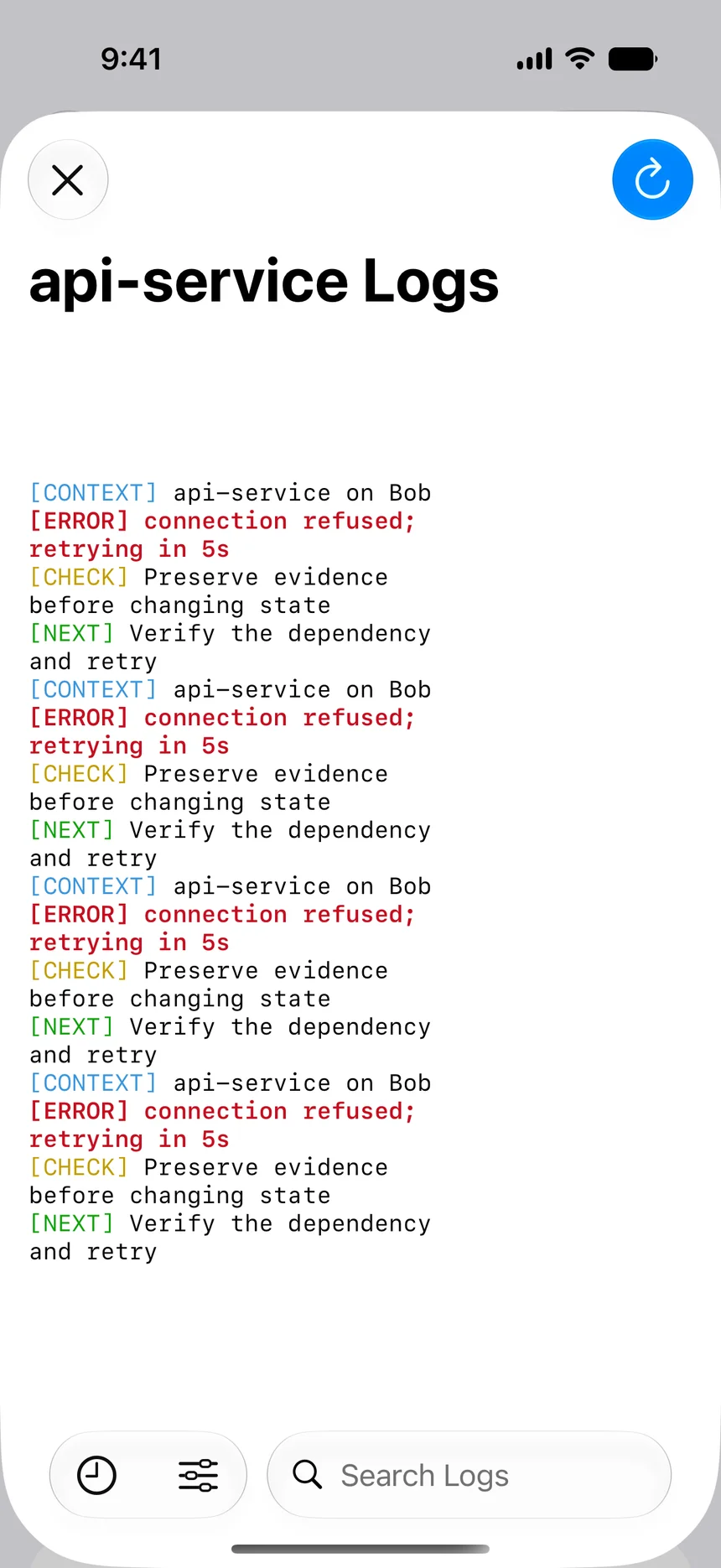
A restart loop is a sequence, not a single state. The container starts, its main process exits, and Docker evaluates the configured restart policy. Policies such as always, unless-stopped, or on-failure may start it again. By the time an operator opens the server, the container can appear briefly green even though it has failed dozens of times. The increasing restart count and repeated startup messages are stronger evidence than one snapshot of the current state.
The useful question is therefore not “Why does Docker restart this container?” but “Why does the container process keep exiting?” WhaleDeck can show the changing state, logs, restart policy, image, mounts, networks, and resources from iPhone, iPad, or Mac. Configuration repair still belongs in the Compose file, deployment repository, secrets system, or host configuration that owns the service.

Confirm that it is a real restart loop
Open the expected Docker host and verify the exact container name, Compose service labels, and creation time. Record the current restart count and watch whether it increases. Compare the start time with the newest log lines. A container that was restarted once during a planned deployment is different from one that exits every few seconds. Also distinguish restarting from unhealthy: a Docker health check can report unhealthy while the main process continues running, and Docker Engine does not automatically restart a container merely because its health status changes.
Capture the state object before intervention: running, restarting, paused, or exited; exit code; error text; OOMKilled; restart count; image identity; and restart policy. Read a bounded log window with timestamps. If output repeats from the beginning, identify the last successful initialization step and the first recurring error. That boundary often points directly to configuration parsing, missing files, unavailable dependencies, database migration failures, or permission problems.
Read the exit code in application context
Exit code 1 is a generic application failure and requires logs or application documentation. Exit code 126 or 127 can indicate an execution or command-path problem. Exit code 137 means SIGKILL and may involve an out-of-memory event or an external forced termination. A zero exit code can still loop when an always-style policy starts a short-lived command again. Do not assign one universal meaning without comparing the code with Docker state and the workload design.
If the container exits too quickly for an interactive shell, inspect it from outside rather than racing to exec into it. Review the configured entrypoint and command, environment variable names, secret and configuration mounts, working directory, user, platform, and resource limits. Compare those values with the deployment source. Avoid printing secret values into incident notes; confirming that a variable or mount exists is often sufficient.
Check the common startup boundaries
Start with dependencies named by the logs. A web service may wait for a database, message broker, DNS record, mounted configuration, certificate, or writable data directory. Confirm that the dependent service is reachable from the same Docker network and that it is actually ready. Check whether a recent image or configuration update changed a hostname, port, credential reference, file path, schema, or required environment variable.
Then inspect host constraints. Compare memory and CPU behavior, available disk space and inodes, volume permissions, and image architecture. If several unrelated containers began restarting together, look for a shared host, storage, network, DNS, or certificate failure before editing each service. Correlate timestamps with deployments, host reboots, certificate rotations, NAS maintenance, firewall changes, and monitoring alerts.
- Image entrypoint and command
- Required environment and secrets
- Bind mounts and named volumes
- Network and dependency readiness
- Host memory, storage, and recent changes
Stop the loop only when it helps diagnosis or safety
A fast loop can create load, flood logs, trigger rate limits, or repeatedly run a dangerous initialization step. After preserving evidence, a controlled stop may be appropriate. Document the previous restart policy and deployment state before changing anything. Do not delete the container merely to make the dashboard quiet; removal can discard the easiest view of its exact command, image, labels, mounts, and network attachments.
Apply the repair through Compose or the owning deployment workflow. Correct the specific missing dependency, invalid configuration, permission, incompatible image, or resource condition. If a new image caused the loop, use the approved rollback procedure and consider data migration compatibility before restoring an older version. Make one attributable change rather than simultaneously changing memory, networking, volumes, and command arguments.
Verify that the loop is actually resolved
After recreation or restart, record the new start time and image digest. Confirm that startup logs progress beyond the previous failure boundary, the health check becomes healthy where one exists, and a representative application request succeeds. Recheck mounts, network connections, ports, and resource use. A running badge proves only that the process exists at that moment.
Observe the container longer than the prior restart interval and confirm that the restart count remains stable. If the service previously failed only under traffic or a scheduled task, test that condition deliberately. Record the cause, repair, and verification evidence, then add a preventive follow-up such as a clearer health check, bounded log retention, dependency alert, resource limit review, or deployment validation.
Frequently asked questions
Does Docker restart an unhealthy container automatically?
Docker Engine restart policies react to a container process exiting. Health status alone does not normally trigger an Engine restart, although an orchestrator or external automation may act on unhealthy state.
Should I disable the restart policy?
Temporarily stopping a harmful loop can help after evidence is captured, but permanently disabling the policy only changes recovery behavior. The process exit still needs a root-cause fix.
Why are the same log lines repeated?
Each restart begins application initialization again. Repeated startup output helps identify the last successful step and first consistent failure in every attempt.
Can I inspect a container that restarts too quickly?
Yes. Inspect Docker metadata and logs from outside the container. Review entrypoint, command, environment names, mounts, networks, image, exit details, and restart count without relying on an interactive shell.
How do I know the repair worked?
The restart count should remain stable beyond the original failure interval, startup should pass the prior error boundary, health and representative requests should succeed, and resource behavior should remain normal.