
Guide · 7 min read
How to manage Docker containers from an iPhone
Learn how to connect an iPhone to a remote Docker host, inspect containers, check logs, and perform routine actions without exposing the Docker API.

typ0genius · Published
In short
To manage Docker containers from an iPhone, keep Docker on the server, connect through a protected transport such as SSH, and use a mobile client to inspect status, logs, resource usage, and lifecycle actions. Do not expose an unauthenticated Docker TCP socket to the internet.
Docker workloads normally run on a Linux server, NAS, or development machine. The iPhone is the control surface, not the Docker host. That distinction matters because a mobile management setup should provide convenient access without weakening the security model of the server.
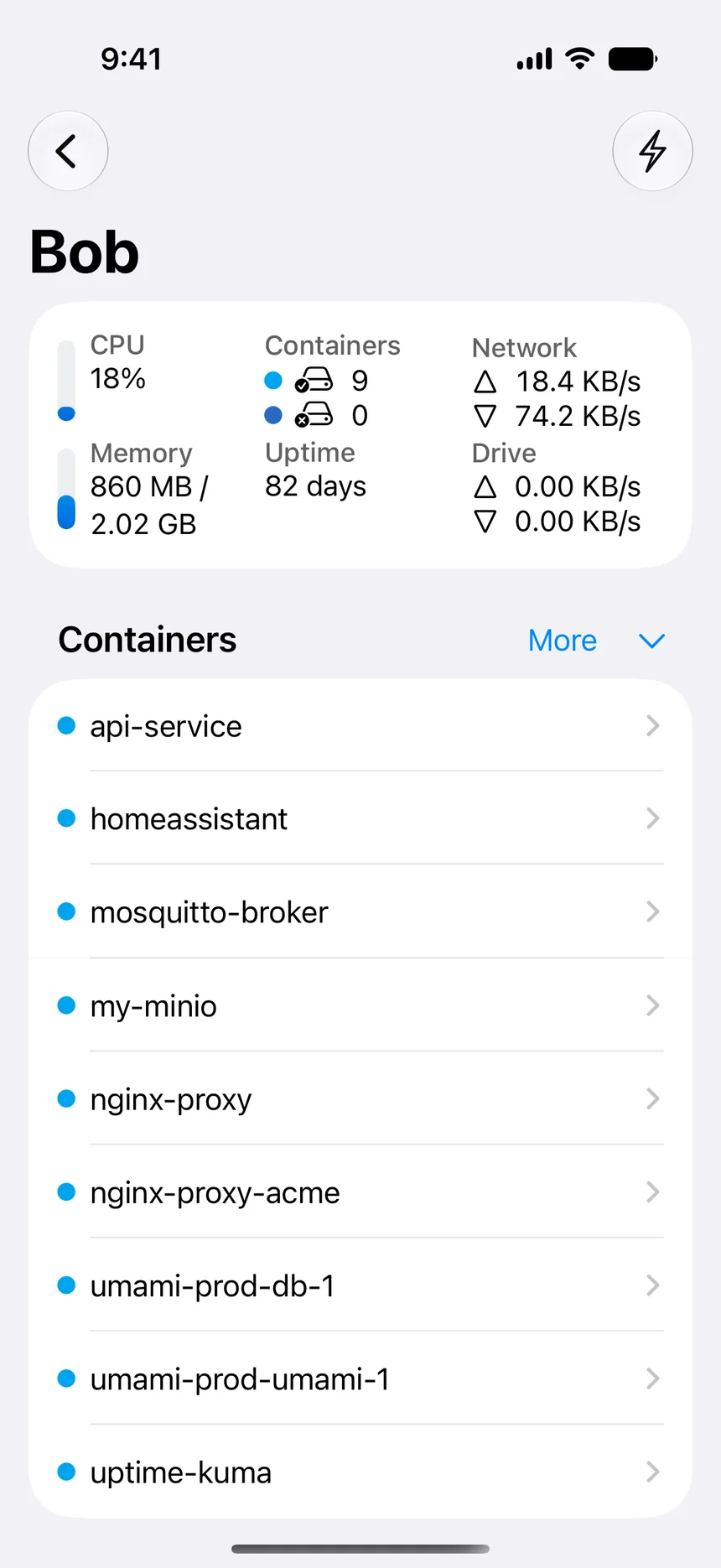
WhaleDeck is a native Apple-platform client for this workflow. It presents containers, images, networks, volumes, logs, and server statistics in a touch-friendly interface. The same operational principles apply whichever client you choose: protect the transport, restrict access, and verify the target before running a destructive action.

Start with a secure connection model
Docker uses a local Unix socket by default. Giving a remote client access to that socket effectively grants powerful control over the host, so the connection should be treated like administrative access. Docker documents SSH and TLS as protected ways to reach a remote daemon. An unencrypted listener on port 2375 is not an acceptable shortcut for an internet-facing server.
For a small self-hosted environment, SSH is usually the easiest model to understand. Create a dedicated account, use key-based authentication, restrict network access where possible, and grant only the permissions needed to work with Docker. Store the private key using the protections provided by the device and avoid sharing one administrative key across several people.
- Confirm the server address and SSH port.
- Use a dedicated account and a unique key.
- Limit inbound access with a firewall, VPN, or trusted network.
- Never publish an unauthenticated Docker socket.
Build a reliable mobile operating routine
A small repeatable routine prevents accidental restarts and makes a phone useful during an incident. Begin with the server overview and confirm that you are connected to the expected host. Review total CPU, memory, storage, and network activity. Then open the affected container and compare its current state, restart policy, mapped ports, volumes, and networks with what you expect.
Read the most recent log lines before taking action. An exited container may have a clear configuration error, while a running container may be unhealthy because a dependency is unavailable. Restarting without reading the evidence can briefly hide the symptom and remove useful context. If a restart is appropriate, watch the state and logs immediately afterward.
Know which actions belong on a phone
A phone is excellent for triage, status checks, log inspection, and simple lifecycle actions. Larger changes such as editing Compose files, rotating secrets, restructuring networks, or performing a database recovery are better handled in a controlled development environment with version history and a full keyboard.
The goal is not to replace every terminal workflow. It is to shorten the time between noticing a problem and understanding it. A useful mobile setup gives you enough context to decide whether the issue is safe to resolve immediately or should be escalated to a deeper maintenance session.
- Good mobile tasks: inspect, acknowledge, restart, stop, start, and verify.
- Use caution for pruning, deleting volumes, or removing images.
- Reserve configuration and data-recovery work for a reviewed workflow.
Frequently asked questions
Can Docker run directly on an iPhone?
Not as a normal Docker Engine host. In this workflow Docker runs on a remote server, NAS, or Mac, while the iPhone acts as a management client.
Is it safe to expose Docker port 2375?
No. Port 2375 conventionally represents an insecure, non-TLS Docker connection. Use SSH, TLS, a VPN, and network restrictions instead of exposing an unauthenticated endpoint.
What should I check before restarting a container?
Confirm the server and container identity, inspect current state and resource use, read recent logs, verify dependencies, and understand the restart policy before triggering a restart.