
Troubleshooting · 7 min read
How to read Docker container logs on iPhone and iPad
Use Docker logs on iOS for fast incident triage, understand stdout and stderr limitations, and know when to switch to centralized logging.

typ0genius · Published
In short
To read Docker container logs on iPhone or iPad, connect to the Docker host with a secure client, select the container, and inspect its recent stdout and stderr output. Missing output can mean the application writes to files or uses a logging driver that is not available through the standard Docker logs API.
Container logs are often the fastest way to understand why a service exited, failed a health check, or returned an error. A mobile log view is particularly useful when an alert arrives away from a workstation, because it can quickly distinguish a known transient failure from an incident that needs deeper investigation.
The log view is only as complete as the container logging configuration. Docker normally exposes what the process writes to standard output and standard error. Applications that write exclusively to files, external collectors, or logging drivers without a readable local cache may show little or no output in a client.
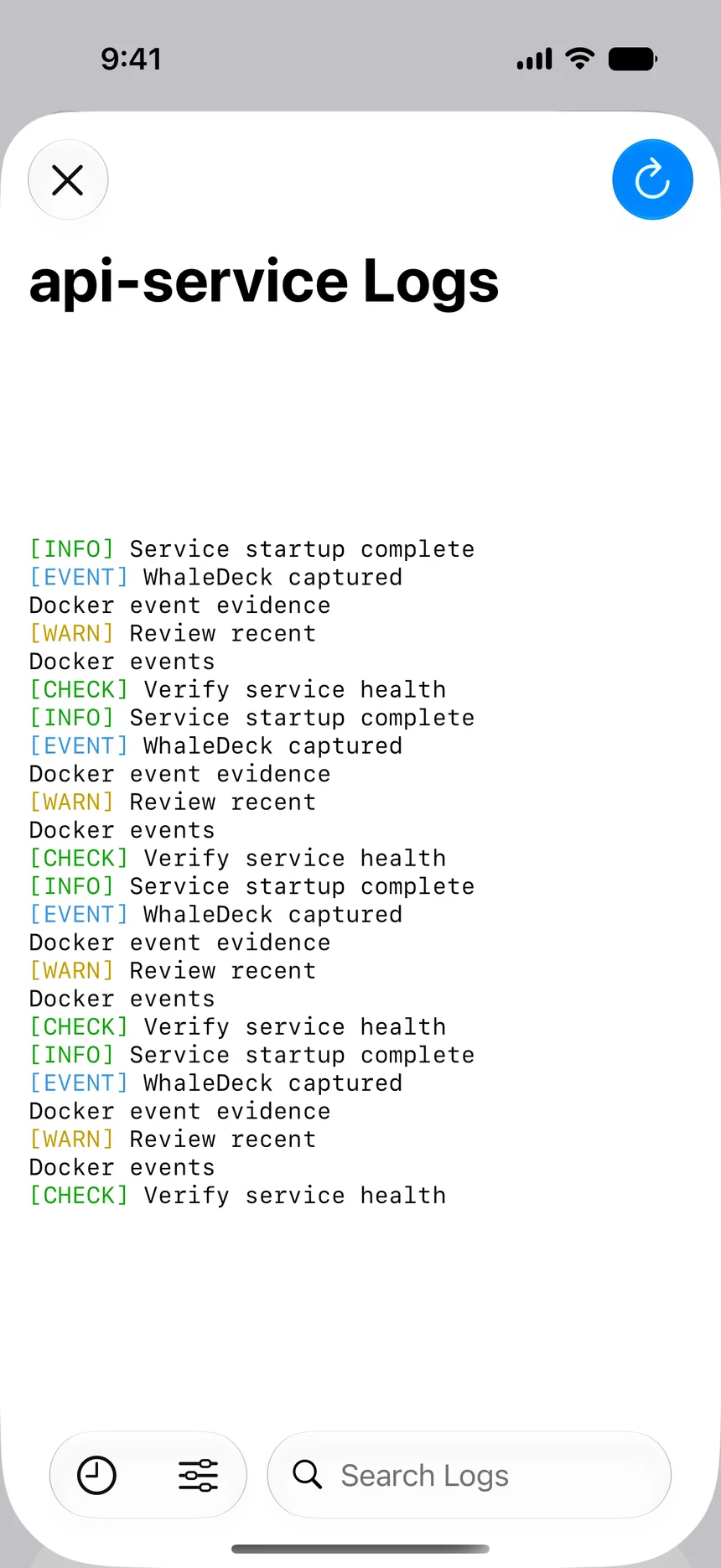

Understand what Docker logs contains
The standard Docker log stream generally contains the process output written to stdout and stderr. This convention works well for containers because the runtime can collect the stream without knowing the application internals. The exact lines, timestamps, and format still depend on the image, entrypoint, application, and selected logging driver.
Some applications write operational data to files inside the container or a mounted volume. Others send it directly to a remote system. In those cases the normal log endpoint can be incomplete. Before assuming a client is broken, inspect the image documentation and the daemon logging configuration.
Triage an incident from a small screen
Confirm the container name and host first. Note whether the container is running, exited, paused, or restarting. Read the lines immediately before the state change and look for a concrete cause such as a missing environment variable, permission failure, refused connection, invalid configuration, or out-of-memory condition.
Work backward from the first relevant error. Repeated retries can create hundreds of secondary messages that obscure the original failure. If timestamps are available, compare them with deployments, dependency outages, certificate changes, storage pressure, or user reports. Preserve useful evidence before restarting the service.
- Verify host, container, and time range.
- Find the first error before repetitive follow-on failures.
- Check whether a dependency or mount is unavailable.
- Capture evidence before a restart changes the log context.
- Verify startup and a representative application response after any action.
Know when mobile logs are not enough
A mobile client is designed for recent operational context. It is not a replacement for indexed, retained, multi-service logs. If you need to search weeks of data, correlate request identifiers, build dashboards, enforce retention, or provide an audit trail, send logs to a dedicated platform and protect that platform with appropriate access controls.
Use the mobile view as the first diagnostic layer. It should help you decide whether a safe action is obvious, whether another container is involved, or whether the incident needs a full terminal and observability workflow.
Frequently asked questions
Why are Docker logs empty for a running container?
The application may write to files instead of stdout or stderr, or the selected logging driver may send output elsewhere without a readable local cache.
Should I restart a container as soon as I see an error?
Not automatically. Record the state and relevant log lines, identify dependencies, and confirm that a restart is safe for the workload before acting.
Do Docker logs include daemon logs?
No. Container output and Docker daemon logs are different sources. Host or daemon failures may require system logs on the Docker server.