
Automation · 8 min read
Automating Docker routines with Apple Shortcuts
Design safe Docker automations for iPhone, iPad, and Mac using Apple Shortcuts, with scoped actions, confirmation, verification, and failure handling.

typ0genius · Published
In short
Use Apple Shortcuts to automate narrow, reversible Docker routines such as checking status or restarting a named stateless container. Define the target explicitly, add confirmation for risky actions, verify the result, and surface failures instead of building a generic shortcut with unrestricted control.
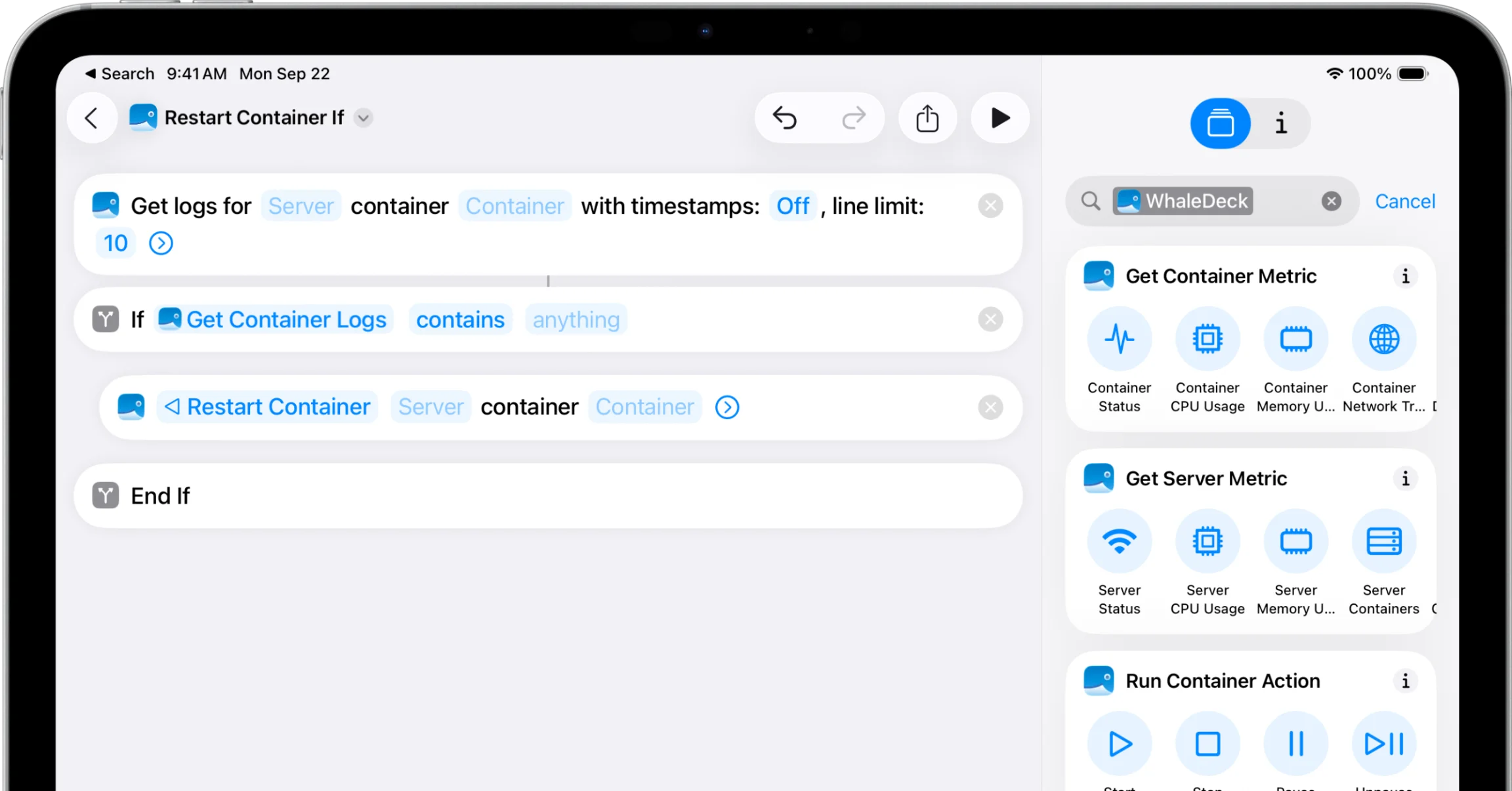
Apple Shortcuts can connect an operational action to a manual button, Siri phrase, schedule, Focus mode, or another device event. WhaleDeck exposes Shortcuts actions that can make common Docker routines available across iPhone, iPad, and Mac.
Automation removes friction and also removes moments when a person would normally notice the wrong server or an unsafe condition. The best shortcuts are deliberately narrow. They identify one environment and one outcome, check preconditions, and report what happened.
Choose automation candidates by risk
Read-only checks are the safest starting point. A shortcut can retrieve a server overview, check whether a container is running, or present recent status before a meeting or maintenance window. Once that flow is reliable, add a reversible state change such as starting a known container or restarting a stateless service.
Avoid unattended deletion, pruning, volume removal, image cleanup, or database lifecycle actions. These operations can have effects that are not visible from the trigger context. A scheduled automation should never assume that the environment is unchanged simply because the same action succeeded yesterday.
Build a guarded shortcut
Start with explicit inputs: the server, container, intended state, and acceptable preconditions. Fetch the current state before changing it. If the target is unexpected, stop and show a message. For manual workflows, present a confirmation that includes the human-readable server and container names.
After the action, wait only as long as necessary and query the state again. A successful API response means the request was accepted; it does not prove that the application became healthy. If health data or logs indicate a failure, surface that result and link the operator back to the detailed container view.
- Select one named server and container.
- Read and validate the current state.
- Ask for confirmation when state will change.
- Run the action and fetch the new state.
- Notify with a clear success or failure result.
Use triggers carefully
Apple supports personal automations triggered by events such as time of day. A trigger is useful for a status report or a low-risk routine, but it does not add operational context. Network availability, maintenance, deployments, and dependency state can all differ at the scheduled time.
Prefer a scheduled health summary over a scheduled restart. If an automated recovery is truly required, implement it close to the workload with health checks, restart policies, orchestration, and monitoring. Use the Apple-platform shortcut as a visible control and notification layer rather than the only reliability mechanism.
Frequently asked questions
Can a Shortcut restart a Docker container?
Yes, when the management app provides a restart action and the connection has permission. Scope it to a known target, confirm when appropriate, and verify the resulting state.
Should I schedule automatic container restarts?
Usually not as a first response. Health checks, restart policies, and monitoring on the server provide better context. Scheduled Shortcuts are safer for status summaries and controlled routines.
Can Siri trigger a Docker action?
Shortcuts can be invoked through Siri where supported. Use distinctive phrases and require confirmation for any action that changes a service.