
Guide · 6 min read
Using widgets for glanceable Docker container monitoring
Choose useful Docker status widgets for iPhone, iPad, and Mac, understand refresh limitations, and connect glanceable information to a reliable monitoring workflow.

typ0genius · Published
In short
Docker widgets are best for glanceable status: whether a server is reachable, whether selected containers are running, and whether current resource values look unusual. They are not guaranteed real-time alert channels, so pair them with monitoring and notifications for incidents that require a response.
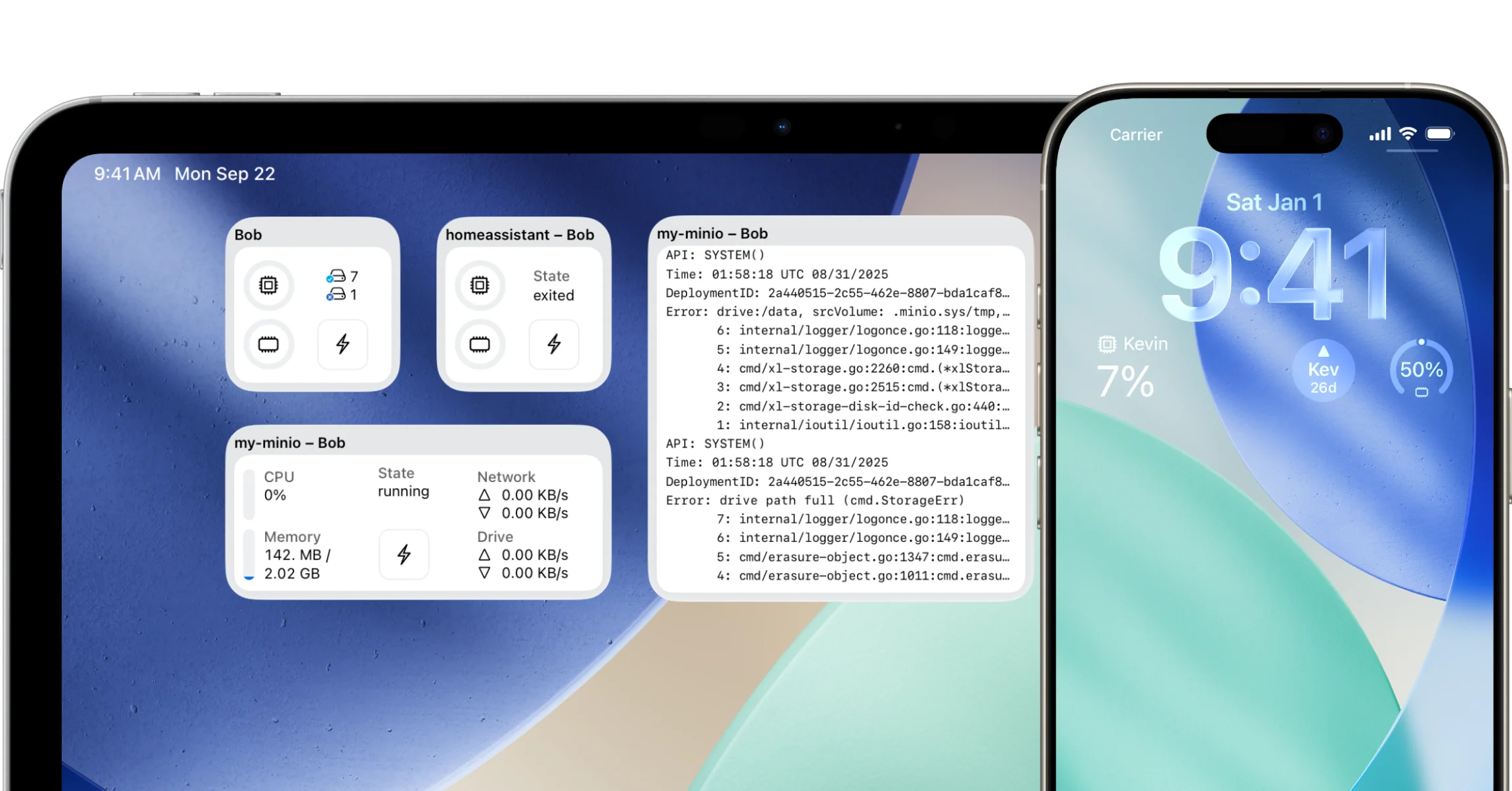
A useful widget reduces the cost of checking a system without demanding constant attention. On iPhone, iPad, and Mac, WhaleDeck widgets can surface server or container information where you already work. The design challenge is deciding which information deserves that limited space.
More metrics do not automatically create better awareness. A compact status view should highlight a small number of important targets and lead to a detailed investigation when something changes. Historical analysis, alert routing, and guaranteed delivery belong elsewhere.
Choose information that changes a decision
Server reachability and container state are high-signal because they can immediately prompt investigation. CPU, memory, storage, or network values are useful when the normal range is understood. A single percentage without history can be misleading, especially for bursty workloads.
Use one widget for the overall environment and another for a critical service only when each has a clear purpose. Filling the screen with every container recreates the noise of a full dashboard while removing the context needed to interpret it.
Account for refresh behavior
Apple platforms schedule widget refreshes according to system conditions and app behavior. A widget may therefore show a recent snapshot rather than the exact current state. Displayed timestamps and a clear path into the app help users understand freshness.
Do not use a widget as the sole mechanism for detecting downtime. A monitoring system should perform active checks, retain history, and send notifications through a channel designed for alerts. The widget then becomes a convenient secondary signal and entry point for investigation.
- Show the target name and environment clearly.
- Include a freshness indicator when possible.
- Use color together with text or icons, not as the only status cue.
- Link directly to the relevant server or container detail.
- Keep reliable alerting outside the widget.
Build a layered monitoring workflow
Use the widget to notice a change, the native app to inspect current state and logs, and the observability stack to understand history and cross-service impact. This layered approach matches each tool to its strength and avoids asking a small Home Screen component to behave like an operations center.
Review the selected widgets as the environment evolves. Remove retired services, rename ambiguous targets, and keep only the information that still leads to a useful action. A quiet widget that is trusted is more valuable than a crowded one that is ignored.
Frequently asked questions
Are Docker widgets real time?
Not necessarily. Widget refresh timing is managed by the operating system, so values should be treated as recent snapshots. Open the app or monitoring system for current detail.
Which containers should appear in a widget?
Choose a small set whose state would change your immediate behavior, such as an important gateway, automation service, or home infrastructure component.
Can a widget replace uptime monitoring?
No. Use active monitoring and notifications for reliable incident detection; use the widget for awareness and fast navigation.